Train a chatbot on your documents: RAG explained simply
How RAG lets an AI assistant answer from your PDFs, pages and FAQs, how document splitting works, and how to set it up well in Fineguide.
“Training” a chatbot on your documents does not mean teaching the AI model from scratch. It means giving the assistant a library it can search: when a customer asks something, it finds the few passages in your documents that answer the question and writes its reply from them. This is called RAG, retrieval-augmented generation, and it is how a Fineguide assistant answers from your price list, your manual or your policies instead of from guesswork.
This post explains RAG in plain words, then shows how to set it up well in Fineguide, including the settings most people never touch but should.
RAG in one minute
A large language model knows a lot about the world and nothing about your business. Ask it about your delivery times and it will produce a confident, generic answer. RAG fixes that in three steps:
- Split. Your documents and web pages are cut into small, meaningful pieces: a section of a manual, one product, one question and answer.
- Retrieve. When a customer asks a question, the system looks for the pieces whose meaning is closest to the question. Not the same words, the same meaning: “how long until it arrives?” finds your passage about “delivery takes 2-3 working days”.
- Generate. The model gets the question plus those pieces, and writes an answer based on them.
The model is not changed. Your knowledge stays yours, you can add or remove a document at any moment, and the next answer reflects it straight away. That is the big practical advantage over “fine-tuning” a model: nothing to retrain, nothing to wait for.
What you can give a Fineguide assistant
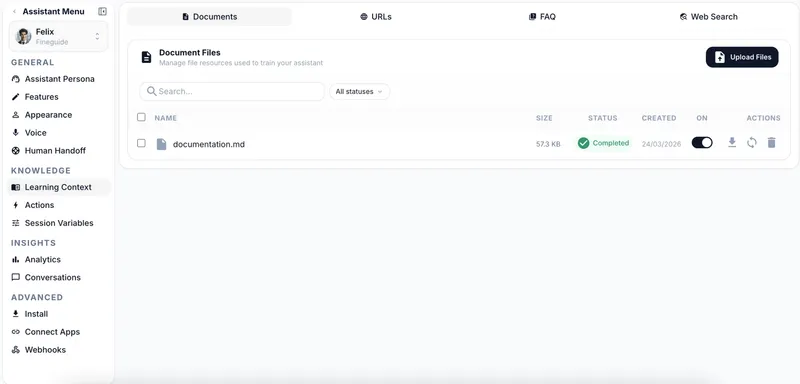
Open an assistant and go to Learning Context. It has four tabs, each a different kind of source:
| Tab | What goes in | Best for |
|---|---|---|
| Documents | PDF, Word, Excel, CSV, text, HTML, Markdown and JSON files | Price lists, manuals, product sheets, internal answer sheets |
| URLs | Website addresses, optionally with every page under them | Service pages, help centre, FAQ, policies |
| FAQ | Exact question and answer pairs | Answers that must be word-perfect: refund rules, legal wording |
| Web Search | Live search with Google, OpenAI, Anthropic or Perplexity, limited to the sites you choose | Fresh information that changes faster than your documents |
Most teams need the first three. Web search is useful when your assistant should also know, for example, the current regulations on a government site. We wrote about it in detail in Fineguide’s web search feature.
How the split works, and why you can choose it
The “split” step matters more than people think. Cut a document badly and the right answer ends up in two halves, neither of which looks relevant on its own. Fineguide lets you choose how each document is split:
- Hierarchical: breaks a document into a tree of concepts, from chapters down to details. The most accurate choice for long, structured documents such as manuals and regulations.
- Sections: finds the titled sections of a structured document and keeps each one whole.
- Semantic: divides the text into logical paragraphs, each with its own title and summary.
- Paragraphs: keeps the paragraph structure, with summaries.
- Fixed Chunks: equal-sized pieces with a small overlap. Fast and simple, good for uniform text.
- Delimiter: splits wherever a separator you choose appears, such as
---. Perfect for a file you wrote as one answer per block. - No Split: the whole document as one piece. Only for very short documents.
If you are not sure, keep the default. If an assistant keeps missing answers that are clearly in a long PDF, try Hierarchical or Sections for that one file.
Setting it up, step by step
1. Start from real questions
Before uploading anything, write down the 20 questions customers ask most. That list decides what to add first, and it becomes your test later.
2. Add your website pages
In URLs, add the pages that answer those questions. Turn on Read Subpaths when everything under an address is useful, for example your whole help centre. Set the Sync Frequency to Daily or Weekly for pages that change, so the assistant re-reads them on its own.
3. Upload the documents the website does not have
In Documents, upload the material customers ask about but cannot find online: the full price list, the warranty conditions, the installation guide. Each file shows its status (Processing, then Completed). You can switch a single document off without deleting it, re-read it after you replace it, or download it again.
4. Write the answers that must be exact
Some answers should never be paraphrased. Put them in FAQ as a question and its answer. “Can I return a product bought on sale?” deserves one precise, approved reply.
5. Keep the assistant inside its library
In Features, limit the assistant to what it has learned and write the reply it gives to anything outside it. This is what turns a chatbot that “sounds right” into one that is right: when the answer is not in your material, it says so politely and offers another way to reach you, instead of inventing a policy.
6. Test with your 20 questions
Ask each one, in the words a customer would use. When an answer is wrong or thin, ask yourself where the right answer should have come from:
- If it is in no document, add it.
- If it is in a long document but was missed, change that document’s split.
- If two sources disagree, fix or remove the outdated one.
7. Improve from real conversations
In Conversations, read what customers actually asked. When you find a weak reply, use Provide a Better Answer: your corrected answer is saved to the assistant’s knowledge and used from then on. Ten minutes a week here does more for quality than any prompt tweak.
Good documents make good answers
RAG is only as good as what it retrieves. A few rules that save hours:
- One topic per section, with a clear title. “Delivery to Germany” beats a paragraph that covers delivery, returns and payment at once.
- Write numbers and conditions in full. “Free delivery on orders over 50 euros within the city” is retrievable; “see the table on page 4” is not.
- Remove old versions. Two price lists from different years will produce two different answers.
- Prefer text over scans. A PDF made from a photo of a page holds an image, not words.
An example
A heating installer uploads three files: a 40-page manual for the boilers they install, a price list in Excel, and a one-page warranty summary. They add their website’s service pages with daily sync, and put five warranty answers in FAQ word for word.
A customer writes: “My boiler shows error E9, is that covered?” The assistant retrieves the manual’s troubleshooting section for E9 and the warranty FAQ, explains what E9 means, says that this case is covered within the first two years, and offers to book a technician visit. Nothing in that reply was invented; every sentence traces back to a document the installer gave it.
FAQ
Is “training a chatbot on my documents” the same as fine-tuning a model? No. Fine-tuning changes the model itself and takes time and data science work. RAG leaves the model as it is and lets it search your documents at the moment of each question. You add or remove a file and the next answer reflects it.
Which file types can I upload? PDF, Word, Excel, CSV, plain text, HTML, Markdown and JSON.
Will the assistant share my internal documents with customers? It uses them to answer, so only upload what you are comfortable having answered from. Keep truly internal notes out of a customer-facing assistant.
How do I stop it answering things it doesn’t know? Limit it to what it has learned in Features and set the out-of-scope reply. It then answers only from your sources.
Give your assistant a library
The difference between a generic chatbot and a useful one is rarely the model. It is the material behind it. Start with your 20 real questions, the pages and files that answer them, and the exact wording for the answers that matter. Then let RAG do what it does best: find the right paragraph in seconds. Read more about what assistants can do on our AI assistants page, or go back to the basics in how to add business knowledge to your AI assistant.