Connect your AI assistant to Instagram
Link your Instagram Business account to a FineGuide AI assistant, enable DMs and optional comment replies, and verify the connection with a real test message.
Instagram is often where customers ask quick questions, check availability, or decide whether to buy — but keeping up with every DM and comment can quickly become overwhelming. With Fineguide, you can connect your existing AI assistant to your Instagram Business account so it can respond directly in Instagram DMs, and optionally comments, using the same knowledge, tone, and instructions it already uses on your website. This guide walks you through what the Instagram connection does, what you need before starting, and how to set it up step by step.
This guide covers what that connection does, what you need before you start, and how to set it up in FineGuide.
What happens when Instagram is connected
FineGuide sits between Instagram and your assistant:
- Someone sends a DM.
- Instagram delivers the event to FineGuide.
- Your assistant processes the message using its knowledge, instructions, and features (same as on other channels).
- The reply is sent back on Instagram.
So Instagram is a channel, not a separate bot. One assistant, one personality, one knowledge base — with Instagram as an extra way for customers to reach you.
What you need before you start
- An AI assistant already created in FineGuide.
- An Instagram Business (or creator) account with messaging enabled — the product asks you to connect an Instagram Business account.
- Admin access to that Instagram account so you can approve permissions in Meta’s login flow.
- A browser that allows popups for FineGuide (the connection opens an Instagram authorization window).
It also helps if the assistant already has basic knowledge and instructions, so replies are useful from the first real DM. Connecting Instagram only routes traffic; it does not teach the assistant your business by itself.
Step 1: Open Connect Apps for your assistant
- Sign in to FineGuide and open Assistants.
- Open the assistant you want on Instagram.
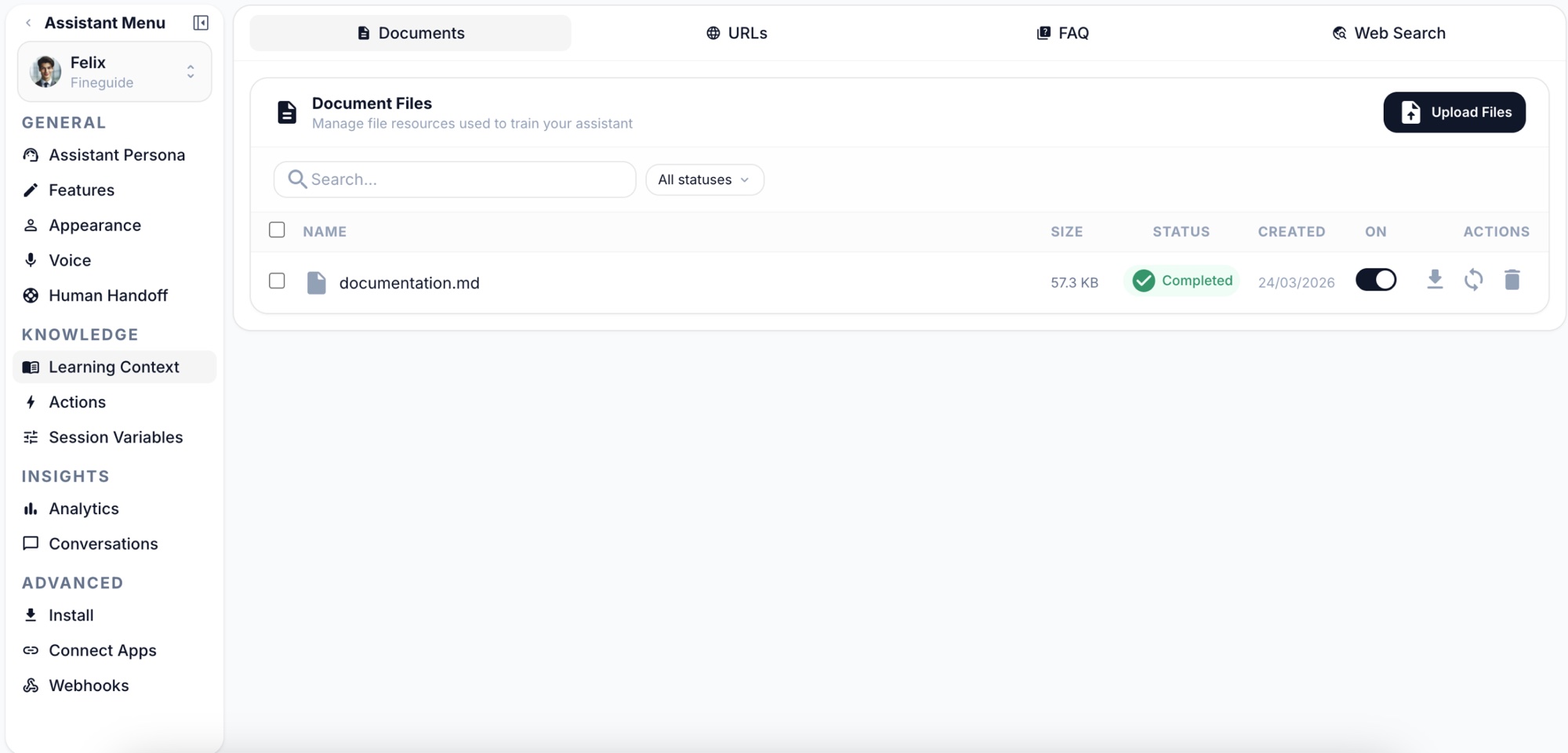
- In the sidebar, under Advanced, open Connect Apps.
You’ll see a grid of channels. Instagram is listed as Instagram — Engage with customers on Instagram DMs and comments.
Step 2: Start the Instagram connection
- Click the Instagram card.
- On the Instagram screen, read the short description: you’re connecting an Instagram Business account for DMs and comments.
- Click Connect with Instagram.
A popup opens and takes you through Instagram / Meta authorization. Log in with the account that owns the Instagram profile you want to use, then approve the permissions FineGuide requests (access to manage messages and, if applicable, comments).
If nothing happens: your browser may have blocked the popup. Allow popups for FineGuide and click Connect with Instagram again.
If you see an error that the account is already connected: that Instagram profile is already linked to another assistant in your workspace. Disconnect it there first, or choose a different assistant for this account. Only one assistant can use a given Instagram account at a time.
When authorization succeeds, you’ll see a success message and the popup will close.
Step 3: Confirm the account is linked
Back in Connect Apps, the Instagram card should show as Connected (green Active on the grid).
Open the Instagram card again. You should see:
- Connected account — your Instagram handle (e.g.
@yourbrand) - An Automations section
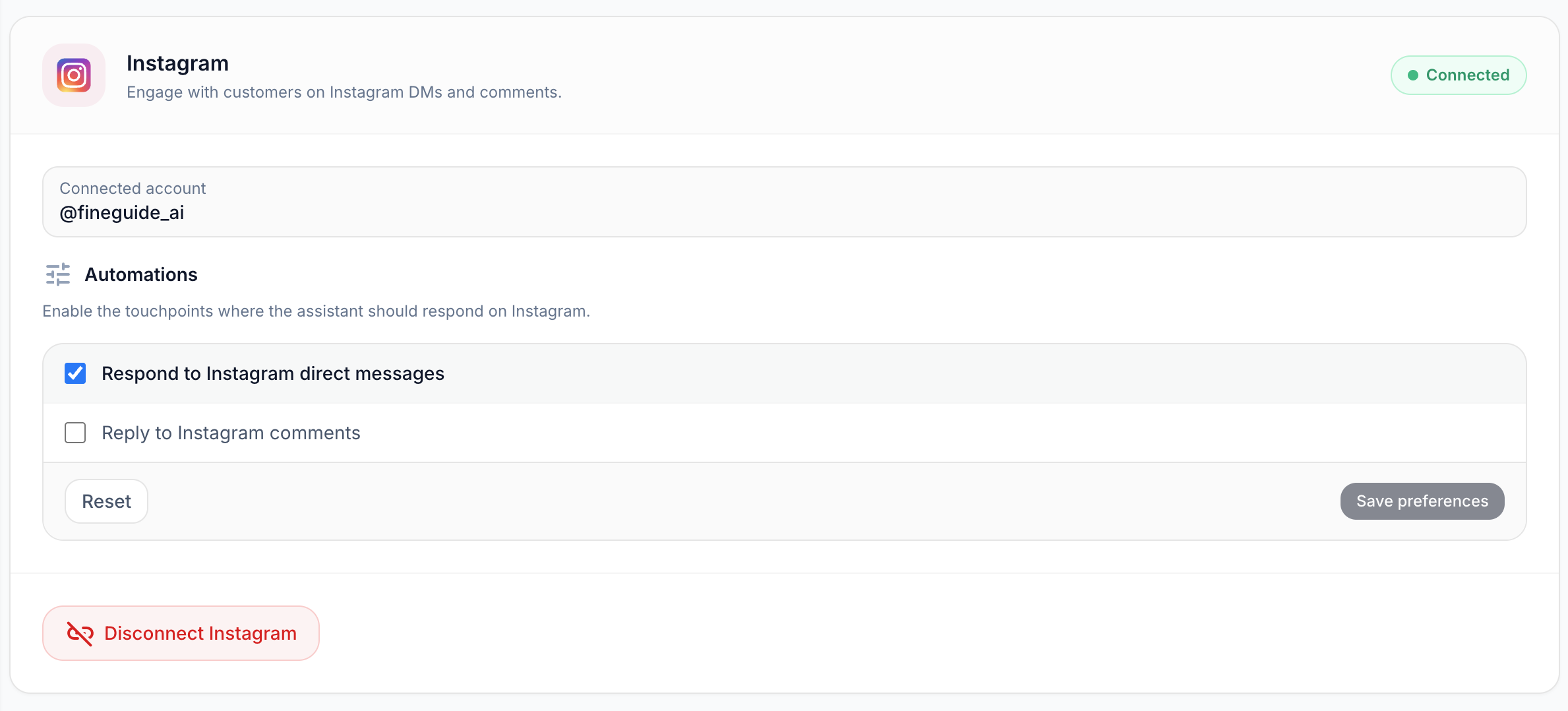
If the handle is wrong, you connected the wrong Meta/Instagram login; disconnect and repeat with the correct account.
Step 4: Choose where the assistant should respond
Under Automations, you control which Instagram events trigger your assistant:
| Option | Default | Meaning |
|---|---|---|
| Respond to Instagram direct messages | On | Assistant replies in DMs. |
| Reply to Instagram comments | Off | Assistant can reply to comments (enable if you want this). |
Most teams start with DMs only, test quality, then turn on comments if needed.
After changing checkboxes, click Save preferences. Use Reset to return to defaults (DMs on, comments off).
Step 5: Test with a real message
- From another Instagram account (or a colleague’s), send a DM to your connected profile.
- Ask something your assistant should know from its knowledge base.
- Confirm you get a sensible reply in Instagram.
You can also use the assistant’s chat preview in FineGuide to sanity-check behavior, but the real proof is a DM on Instagram.
If there is no reply: check that Respond to Instagram direct messages is enabled and saved, and that the assistant has knowledge and is not restricted in a way that blocks answers.
Disconnecting Instagram
On the same Instagram screen, use Disconnect Instagram if you want to remove the link. The assistant itself stays; only the Instagram channel is removed.