How to add knowledge to your AI assistant: Answer real business questions
liviu
Author
A good assistant is not just well-written. It is well-informed.
If you want useful answers, your assistant needs access to the right business information: what you sell, how your service works, how customers can contact you, what your policies are, and what it should say when it does not know something.
This article explains how to add knowledge the right way, so your assistant becomes genuinely helpful instead of vaguely confident.
Why knowledge matters
Without knowledge, an assistant can still sound convincing. That is exactly the problem. It may answer in a polished way, but miss important details, invent policies, or give generic replies that do not reflect your business. Real customer questions are rarely abstract. They are specific:
- What services do you offer?
- Do you support returns?
- How long does onboarding take?
- What documents do I need?
- Do you work on weekends?
- How can I contact support?
To answer those well, the assistant needs real source material.
What kind of knowledge you can add
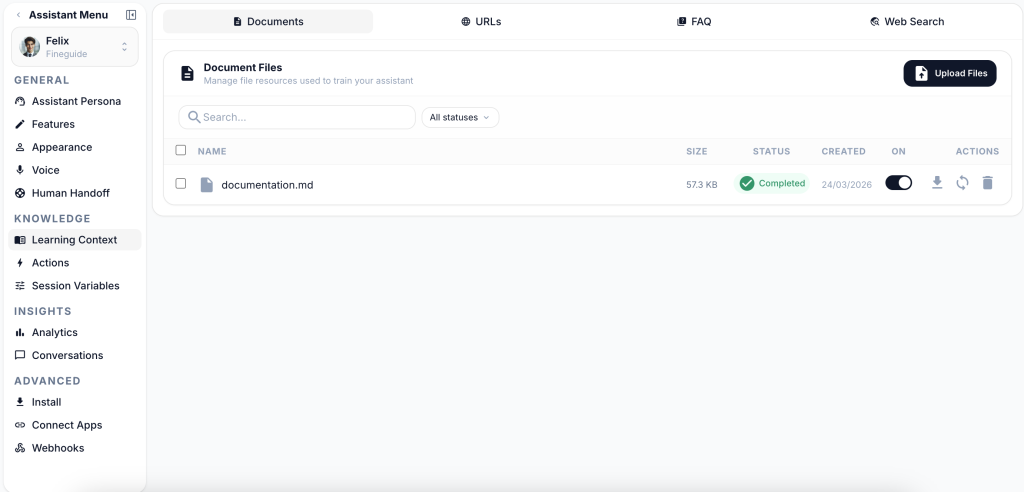
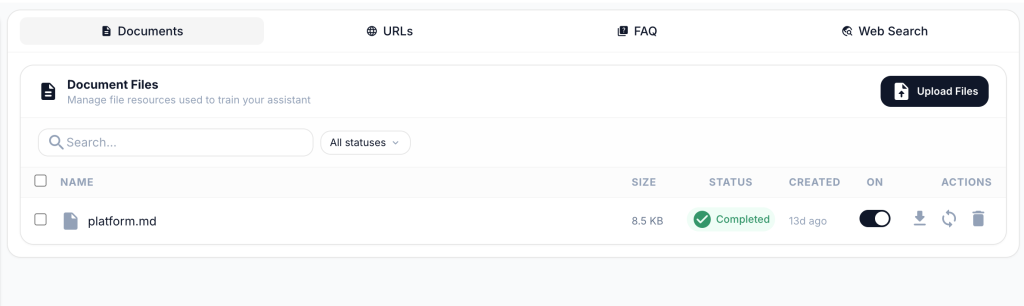
FineGuide lets you build your assistant’s knowledge from two main source types:
- Website URLs
- Uploaded documents
That combination is usually enough for a strong first version.
Website URLs
Use website URLs for information that already lives on your site, such as:
- service pages
- pricing pages
- FAQ pages
- contact pages
- help center articles
- product pages
- shipping and return policies
This is the fastest way to give your assistant a solid base.
Documents
Use uploaded documents for information that is not easy to expose publicly on the website, such as:
- internal PDFs
- product sheets
- service guides
- onboarding documents
- operating instructions
- pricing tables
- knowledge base exports
- markdown or text-based reference files
Supported document formats include common business file types such as PDF, DOCX, TXT, CSV, XLSX, JSON, HTML, and Markdown.
Step 1: Start with the questions customers actually ask
Before uploading anything, pause for five minutes and write down the most common questions your team hears. This is the best filter for deciding what knowledge to add first.
A simple way to think about it:
- If customers ask it every week, add it.
- If a wrong answer would create support work, add it.
- If the answer changes often, add the most maintainable source.
Do not begin with “everything we have.” Begin with “what people actually need.”
Step 2: Add your best website pages
The easiest high-value setup is usually a small set of strong URLs. Start with pages like:
- homepage
- services
- pricing
- FAQ
- contact
- about
- shipping / returns / refund pages
- product or category pages
- onboarding or support pages
This gives the assistant enough context to answer practical questions without being overloaded with weak material. A better first setup is 8 clear pages than 80 messy ones.
Step 3: Upload documents that fill the gaps
Once your public pages are covered, add documents for the details that customers still ask about.
Good examples:
- a product catalog
- a service brochure
- a list of requirements
- implementation steps
- support procedures
- partner or reseller information
- internal answer sheets for common questions
Use documents when they add real value, not just volume. If a document repeats what is already on the website, you usually do not need both unless the document is more complete or more current.
Step 4: Keep the sources clean
The assistant can only be as clear as the material you feed it.
Good source material is:
- current
- specific
- consistent
- well-structured
- written in normal human language
Bad source material is:
- outdated
- contradictory
- duplicated in many versions
- full of placeholders
- stuffed with internal notes nobody would understand
If two sources disagree, the assistant may respond inconsistently. If a page is vague, the assistant may also be vague. If a document is outdated, the assistant may repeat outdated information with confidence. Before adding knowledge, ask one simple question: Would I trust a new team member to answer customers using only this source? If the answer is no, improve the source first.
Step 5: Limit the assistant to its knowledge base
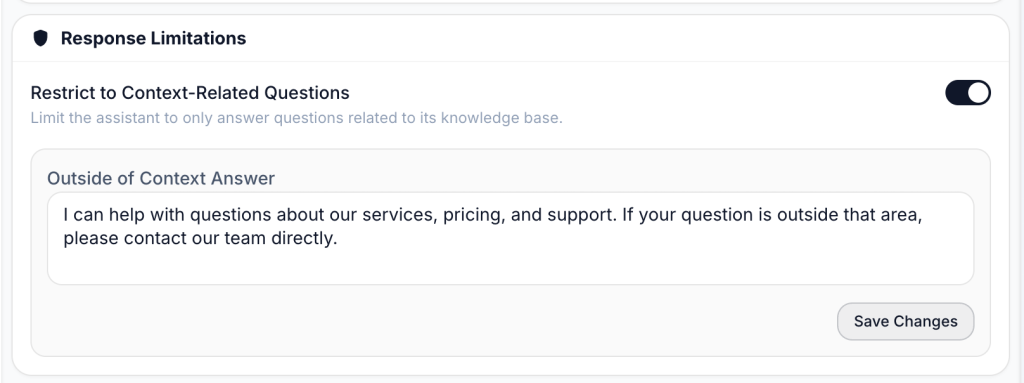
Once your knowledge is uploaded, the next step is to make sure the assistant stays grounded in it. To do that, open your assistant and go to:
Features → Response Limitations
There, enable the checkbox:
Restrict to Context-Related Questions
This tells the assistant to answer only questions related to its knowledge base. After enabling it, you can also fill in the Outside of Context Answer field. This is the message users will see when they ask something that falls outside the assistant’s knowledge.
A good example is:
I can help with questions about our services, pricing, and support. If your question is outside that area, please contact our team directly.
This setting is especially useful when accuracy matters more than creativity. It helps prevent the assistant from improvising answers to questions it should not answer.
Step 6: Think in terms of coverage, not quantity
More knowledge is not always better. The real goal is not to upload the largest amount of content. The goal is to cover the most important customer questions with the clearest possible source material. A small, strong knowledge base usually beats a large, messy one. A healthy first version often looks like this:
- your main website pages
- one pricing or service overview document
- one FAQ or support reference
- a clear fallback answer for out-of-scope questions
That alone can already handle a surprising number of real conversations.
What makes a source “good” for AI
Here is a simple rule:
Good AI knowledge is specific, explicit, and easy to quote.
For example, this is weak:
- “We offer flexible onboarding for many types of clients.”
This is much better:
- “Onboarding usually takes 3 to 5 business days. Enterprise setups may take longer depending on integrations.”
Specific language gives the assistant something reliable to work with.
The more concrete your source material is, the better the assistant will perform.
Common mistakes to avoid
1. Adding too much too early
Teams often upload everything they can find on day one. This creates noise fast. Start small. Test. Then expand.
2. Feeding the assistant outdated material
An old brochure or stale policy page can do more harm than no source at all. Use the newest version only.
3. Mixing internal and customer-facing language
If the source material is full of shorthand, private notes, or unfinished wording, the assistant may mirror that confusion. Clean sources create cleaner answers.
4. Expecting knowledge to fix weak instructions
Knowledge tells the assistant what it knows. Instructions tell it how to behave. You need both.
5. Forgetting to test after adding knowledge
Uploading content is not the finish line. It is the start of validation.
How to test whether the knowledge is working
After adding knowledge, ask the assistant real business questions, not demo questions.
Good tests include:
- straightforward customer questions
- slightly messy wording
- short questions with little context
- questions that combine two topics
- questions the assistant should refuse or redirect
For example:
- What do you actually offer?
- How long does setup take?
- Can I talk to support on weekends?
- Do you have a refund policy?
- Can you help with something unrelated to your services?
You are looking for three things:
- accuracy
- clarity
- boundaries
If the answer is wrong, the source may be weak. If the answer is vague, the source may be too generic. If the answer goes beyond what you provided, tighten the context restriction and refine the outside-of-scope answer.
A simple first setup that works well
If you are starting from scratch, this is a strong first version:
- Add your homepage.
- Add your services or product pages.
- Add your pricing page if relevant.
- Add your FAQ and contact page.
- Upload one or two high-value documents.
- Go to
Features→Response Limitations. - Enable
Restrict to Context-Related Questions. - Add a clear
Outside of Context Answer. - Test 10 to 15 real customer questions.
That is enough to create a useful assistant without overcomplicating the setup.
Final thought
Knowledge is not just content. It is the assistant’s reality.
If you give it clear, current, business-relevant material, it can answer with confidence and precision. If you give it weak or messy sources, it will still answer, but not in the way you want.
Start with the questions your customers actually ask. Add the pages and documents that answer those questions best. Keep the scope clear. Then test like a real user would.
That is how you turn an assistant from impressive to dependable.